





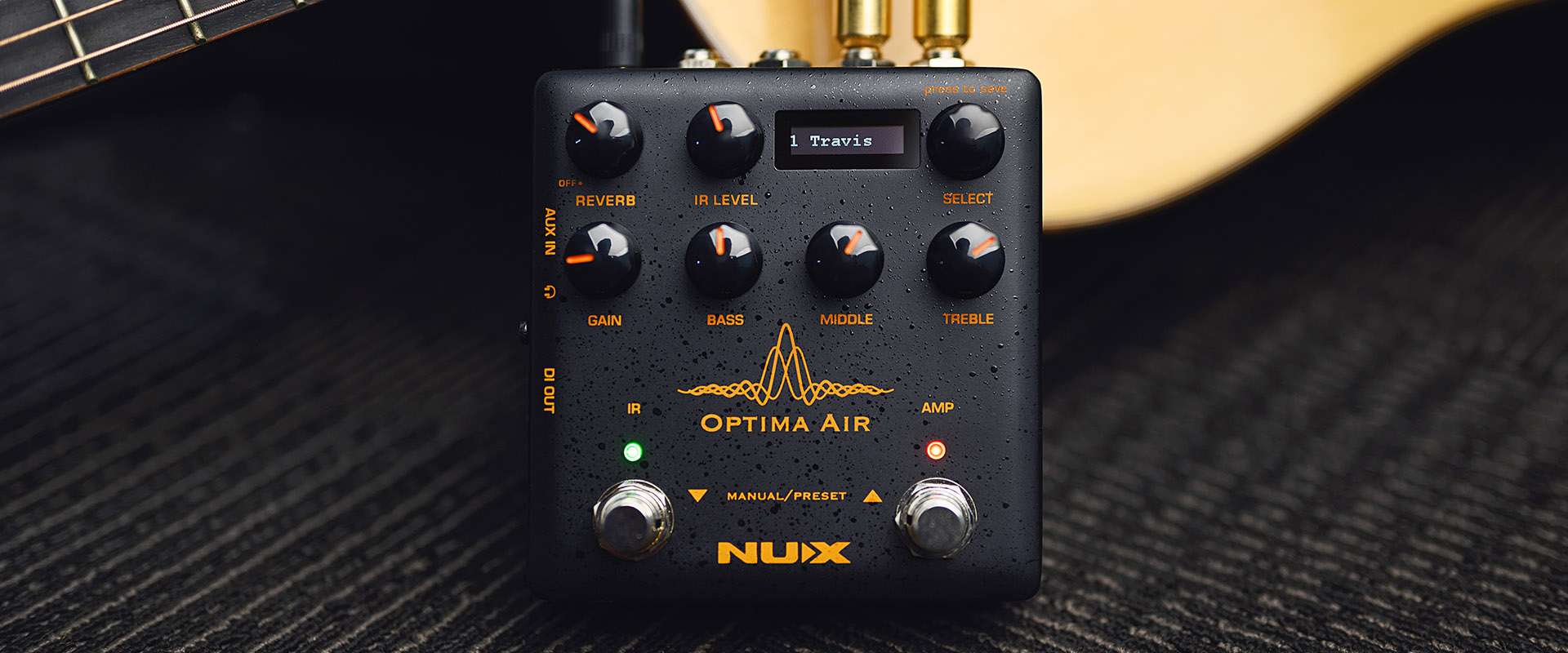
NUX Optima Air is a dual-switch acoustic guitar simulator with a preamp for acoustic and electric guitar players. It simulates the acoustic guitar profiles with the best-optimized sound depending on your guitar and pickup type.
IR loader combined with a preamp, which is equipped with 3-band EQ and Gain controls. And there is an additional one-knob control Reverb effect. If you want to connect any effect pedal, you can use the SEND/RETURN effect loop and add the Optima Air into the signal chain.
NUX Optima Air has a unique profile capture function; you can create your own acoustic guitar profile (IR file) by capturing your favorite acoustic guitar’s sound.
There is an XLR DI output for direct line/mixer connection, a headphones output for silent play and an auxiliary input to connect a music player to play along.

Reverb: One Knob Reverb effect control. It adjusts the Dry/Wet and Decay parameters. Or you can turn it OFF by tweaking to 0
IR Level: Adjusts the simulated signal (Impulse Response file) LEVEL
Select (Push to Save): In manual mode, you can choose the IR file. And you can save your customized preset by pushing the knob
Gain: Adjusts the signal input Gain level
3-Band EQ:
– Bass: Adjusts the low frequency level
– Middle: Adjusts the middle frequency level
– Treble: Adjusts the high frequency level
IR Footswitch:
– Manual Mode: Engage/disengage the selected IR file. Acoustic guitar simulation ON/OFF
– Preset Mode: Bank DOWN
Also, if you are editing a preset, you can push the IR footswitch to exit without saving
AMP Footswitch:
– Manual Mode: Activates the pre-amp section. When you engage the AMP, you can use the Gain and the 3-band EQ
– Preset Mode: Bank UP
Also, if you are editing a preset, while you are changing the preset name, you can push the AMP footswitch and move the cursor to the next selection area to choose a letter, number or symbol.
And usually a guitar pick or your fingernail causes some high-frequency noise. You can use the Notch Filter to get a much cleaner sound.

Input: 6.35mm (1/4-inch) jack input.
Output: 6.35mm (1/4-inch) jack output.
Send/Return: 6.35mm (1/4-inch) effect loop inputs.
Micro B USB Port: You can connect the pedal to your computer to use the Optima Air software to create, edit and save your presets. And update the pedal when a new firmware released.
Power Input: 9V Negative TIP power adapter input  .
3.5mm (1/8-inch) Auxiliary Input: You can connect music player to play along with music.
3.5mm (1/8-inch) Headphones Output: For silent practicing or recording.
XLR DI Output: For direct connection to mixer (or PA system).
Optima Air is loaded with 15 impulse response files. Each impulse response file optimized for the guitar type and the pickup type. The IR file names are included the guitar profile, optimized guitar type, and the pickup type. Press the IR footswitch to activate/deactivate the IR function.


NUX Optima Air is equipped with a pre-amp that allows you to enhance your sound by using a 3-band equalizer.
The beauty of an analog circuit is that chaos makes the muse. While you tweak the knob, it affects itself and also other parameters.
Driven by NUX’s white box algorithm (physical modeling) of Neve 1073, Optima Air can replicate the chaos in a compact size, while providing lots of features like USB audio stream, Reverb function, and IR Capture.

You can load 3rd-party IRs and edit preset names through the editor software.
Optima Air also supports USB audio stream, which means you could use Optima Air as a recording interface. You can adjust USB AUDIO routing through the editor software. For the Windows operating system, please download the NUX ASIO Driver from SUPPORT. The editor software offers you a built-in LEVEL adjust knob, so you can tweak the 3rd-party IR level.
Run the pedal in capturing mode; press the IR footswitch and hold, plug in the power cable.
You need to use a condenser microphone for better result. Connect the acoustic guitar to the Optima Air’s input, place the microphone and connect to a microphone to a microphone preamp. And connect the microphone preamp’s output to the Optima Air’s Return (Please check the picture)
Make sure everything’s connected, and you are all set to capture.

You can see the input level and the return level on the pedal screen. Make sure the levels are not reaching the MAX (Peak) level, or too low to capture it. Usually, 60% to 80% is the best level for capturing.
You can press the IR footswitch when you are ready. It will count down from 3 to 1, then you can start to play guitar to send the audio signal to Optima Air to capture and process. Just play as clean as you can, and use finger position or chords you are playing most of the time. Capturing a record will take 10 seconds. You can also see it on the screen; the RED AMP LED will start blinking when the recording is done. You can press the AMP footswitch to save, or you can press the IR button to restart the capturing.
| Specification | Details |
|---|---|
| Sampling Quality | 24-bit / 48 kHz |
| Controls | Acoustic Guitar IR and Pre-Amp |
| Built-in Profiles | 15 acoustic guitar profiles with IR level control |
| Preset Slots | 9 |
| Effects | Reverb |
| EQ | Gain, Bass, Middle, Treble |
| Send/Return | 6.35 mm (1/4-inch) effects loop |
| Auxiliary Input | 3.5 mm (1/8-inch) |
| Headphones Output | 3.5 mm (1/8-inch) |
| XLR DI Output | Balanced XLR |
| USB | Micro-B USB (Audio Stream & Edit Software) |